
Published by: WorldCupLive.us | Category: IPTV Errors & Streaming Solutions
Few things are more frustrating than turning on your IPTV to watch a World Cup match and seeing nothing but a black screen. The World Cup 2026 will be one of the most watched football events in history, and IPTV viewers want to make sure every game runs smoothly. If your IPTV shows no picture, black screen, or sound only, this article will help you fix it before the big games begin.
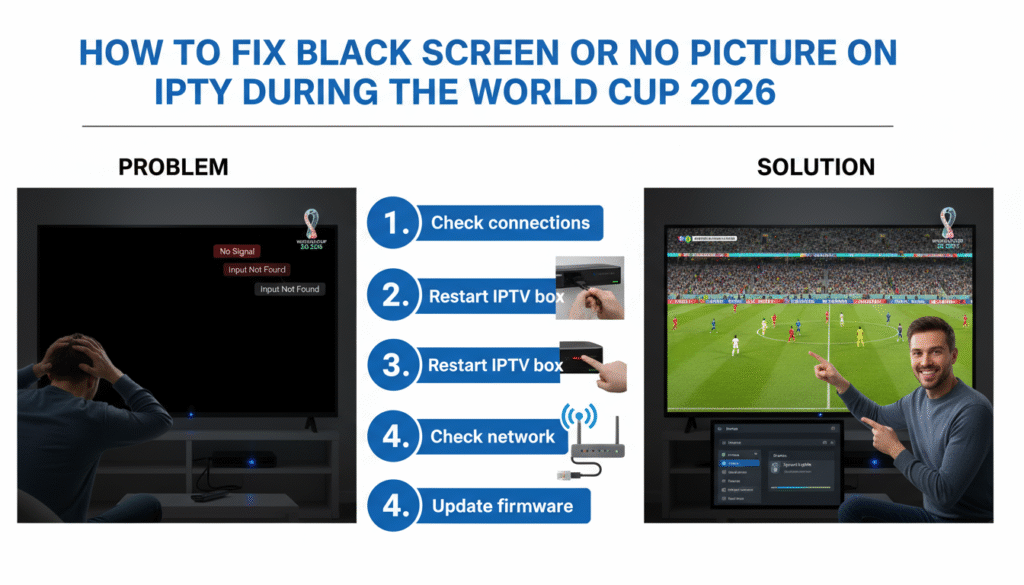
1. Check Your Internet Connection
The most common cause of a black screen on IPTV is a weak or unstable internet connection. If the stream cannot download video data fast enough, the player may show a blank or frozen screen.
Solution: Test your connection speed using Speedtest.net. For stable HD IPTV streaming during the World Cup 2026, you need at least 20 Mbps per device. Restart your router and connect using an Ethernet cable instead of Wi-Fi for the best results.
2. Refresh or Reload the IPTV Stream
Sometimes IPTV channels fail to load correctly, showing only a black screen. This can happen if the stream link is temporarily down or overloaded with users.
Solution: Exit the channel, wait a few seconds, and reload it. If it still does not show, switch to another version of the same match if available. On WorldCupLive.us, multiple backup streams are available to ensure no interruption during World Cup matches.
3. Update or Change Your IPTV Player
Some IPTV apps may not handle certain video formats or streams properly, leading to black screens. This is especially common with outdated apps or incompatible devices.
Solution: Always use the latest version of a reliable IPTV player like TiviMate, Flix IPTV, or SmartOne IPTV. If you still see a black screen, try switching players to check if the issue is app-related.
4. Verify Your IPTV Subscription or Playlist
If your subscription has expired or your playlist link is outdated, your channels will not load even if your internet works perfectly.
Solution: Log in to your IPTV provider account and confirm your subscription is active. Refresh or re-import your M3U playlist or Xtream codes. Reliable services like WorldCupLive.us automatically update your playlist before every major match so you never lose access.
5. Clear App Cache and Data
Temporary files or corrupted cache data can cause IPTV apps to malfunction and display black screens.
Solution: Go to your device settings, open the IPTV app settings, and select “Clear Cache” and “Clear Data.” Then restart the app and reload your channels. This quick fix works for most Android boxes, Firesticks, and Smart TVs.
6. Check Device Compatibility
Older Smart TVs or low-performance devices may not support modern IPTV codecs or 4K streams, leading to blank screens during playback.
Solution: If possible, test your IPTV account on another device such as a smartphone, tablet, or computer. If it works there, your TV or box may need a firmware update. You can also lower stream resolution to 1080p in the app settings for smoother playback during the World Cup 2026.
7. Disable VPN or Proxy Temporarily
While VPNs are useful to bypass geo-restrictions, sometimes they can block IPTV traffic or interfere with connection stability, resulting in black screens.
Solution: If you are using a VPN, disconnect it and test your IPTV connection. If the stream starts working, try reconnecting through a closer VPN server or whitelist your IPTV app in the VPN settings.
8. Reboot Your Device and Router
System memory issues or overheating can cause your IPTV app to stop rendering video. Rebooting both your device and router clears memory and resets network connections.
Tip: Before every World Cup 2026 match, restart your router and IPTV device. This ensures maximum stability during the intense live streaming sessions.
9. Check HDMI Cable or Display Settings
Sometimes, the issue is not with IPTV at all but with your TV setup. A faulty HDMI cable or incorrect input resolution can result in a black screen even though the stream is active.
Solution: Ensure your HDMI cable is properly connected and supports 4K if your stream is in Ultra HD. Also, check your TV’s input source and resolution settings to match your device output.
10. Contact IPTV Provider Support
If none of the fixes work, the problem might be on your provider’s side. Top IPTV services have dedicated support teams ready to help during major tournaments.
Solution: Contact your provider immediately. If you are using WorldCupLive.us, support is available 24/7 to assist you with live troubleshooting so you can get back to watching the match without missing a single goal.
11. Prevent Black Screen Issues Before the World Cup Starts
Preparation is the best defense against black screens. A few days before the World Cup 2026 begins, test your IPTV setup on different devices and channels. Verify that your internet connection is strong, your playlist is updated, and your app works smoothly. This proactive approach ensures a stress-free viewing experience.
Enjoy Uninterrupted Streaming for the World Cup 2026
The World Cup 2026 will be hosted across the USA, Canada, and Mexico, featuring 48 teams and more than 100 matches. It is the biggest football event in history, and IPTV users worldwide want perfect, uninterrupted streaming. With the right setup, you can enjoy every match live, whether it is a dramatic final or an underdog victory.
To guarantee a smooth experience, choose a trusted IPTV provider like WorldCupLive.us. Our servers are optimized for global sports events, offering HD and 4K quality with zero downtime. Watch the World Cup 2026 without black screens, delays, or interruptions.
Final Words
A black screen during a World Cup match can be stressful, but most issues are easy to fix. From checking your internet connection and updating your app to using a reliable IPTV provider, each step helps you prevent downtime. Prepare now so when the whistle blows, all you see is pure football action clear, smooth, and in perfect HD.