
Published by: WorldCupLive.us | Category: IPTV Troubleshooting & Tips
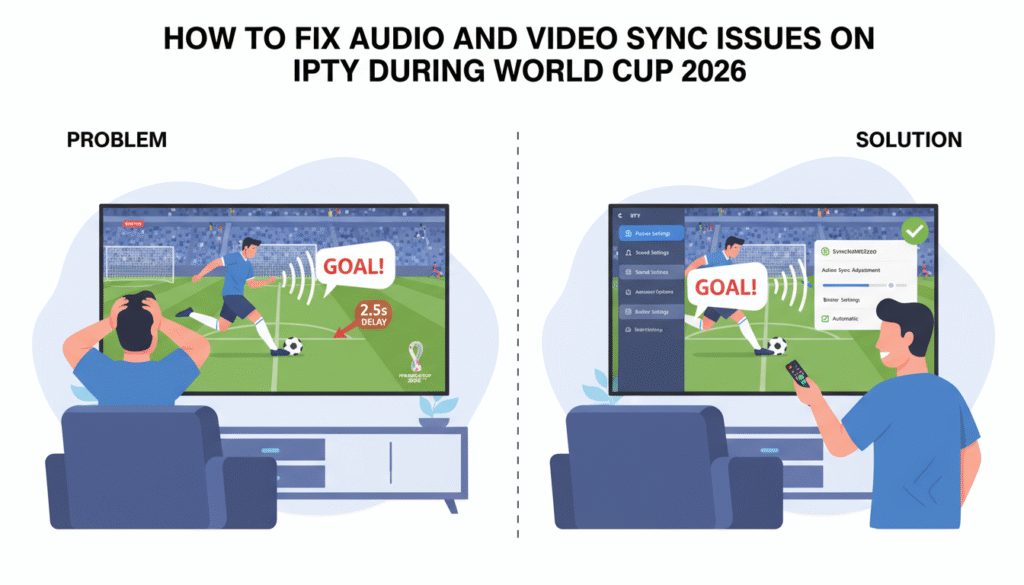
There is nothing more frustrating than watching a thrilling World Cup match and realizing that the commentary does not match the action on screen. When the sound comes seconds before or after the image, it completely ruins the excitement of live football. This problem, known as audio-video desynchronization, is very common among IPTV users. In this guide, we will explain why this happens and how to fix it before the World Cup 2026 begins.
1. Why Audio and Video Go Out of Sync on IPTV
The main reason for this issue is delayed data transmission between audio and video streams. IPTV works by streaming both signals in real time through different processing paths. If one of them lags behind due to buffering, network latency, or device decoding issues, the result is a mismatch.
During high-demand events like the World Cup 2026, millions of users stream the same channels at once, increasing the load on servers and causing slight timing differences. Poorly configured IPTV players or outdated apps can also make the problem worse.
2. Restart Your IPTV Player and Device
Before making advanced changes, try the simplest solution: restart your IPTV player and your streaming device. Sometimes a temporary software glitch causes audio delay. Restarting both the app and your Smart TV, Firestick, or Android box clears cached data and reloads the stream correctly.
3. Adjust Audio Delay in Your IPTV Player
Most IPTV players allow you to manually adjust the audio delay to match the video. If your sound is ahead of the picture, increase the delay; if it lags behind, reduce it.
Example: In TiviMate, open any channel, go to Audio Settings, and use the “Audio Offset” option. Move the slider in small steps (100–200 ms) until both sound and image match perfectly.
4. Update or Reinstall Your IPTV App
Outdated IPTV apps may contain bugs that affect stream synchronization. Always keep your app updated to the latest version available. If the problem persists, uninstall and reinstall the app to clear any corrupted files or outdated codecs.
5. Switch Between Different IPTV Players
Not all players handle synchronization equally. If the problem continues even after adjustments, try another player. Popular options like Flix IPTV, and IPTV Smarters Pro handle audio and video processing differently. Switching players can instantly fix sync issues for certain channels.
6. Check Network Quality and Latency
High latency or unstable internet connections can cause the audio or video stream to lag behind. This is especially common when streaming over Wi-Fi or mobile data during crowded events like the World Cup 2026.
Solution: Run a speed test and ensure at least 25 Mbps stable connection. Use a wired Ethernet connection whenever possible. If you must use Wi-Fi, position your router close to the TV and reduce interference by disconnecting unused devices.
7. Disable Audio Enhancement Features on Your TV
Many Smart TVs include sound enhancement options like “Surround,” “Virtual Sound,” or “Dolby Delay.” These features process audio independently from the video stream, causing slight desynchronization.
Solution: Open your TV’s audio settings and turn off enhancements. Select the “Standard” audio mode for live sports. This ensures the sound matches the action perfectly during the World Cup 2026 matches.
8. Adjust Audio Settings in Your IPTV Box or Receiver
If you are using an Android box, MAG device, or IPTV receiver, you can manually synchronize audio at the hardware level. Go to your device’s system settings and find the “Audio Delay” or “AV Sync” option. Adjust it slightly (±100 ms) until synchronization is perfect.
9. Update Firmware or Device Software
Old firmware can cause processing delays in decoding audio or video streams. Manufacturers release updates that improve synchronization and overall IPTV performance. Check your Smart TV, Firestick, or Android box for available updates before the World Cup begins.
10. Use Reliable IPTV Providers with High-Quality Servers
Low-quality IPTV providers often use unstable or overloaded servers that cause uneven audio and video timing. During major events like the World Cup 2026, these differences become noticeable due to high traffic.
Solution: Choose a provider that uses premium servers optimized for live sports. WorldCupLive.us offers advanced synchronization technology and fast servers designed specifically for HD and 4K live football streams, ensuring the audio and video stay perfectly aligned throughout every match.
11. Test Different Channels or Stream Sources
Sometimes the issue is specific to a particular channel or stream source. Try switching to another version of the same match (for example, English vs. Spanish commentary) to see if synchronization improves. Many IPTV providers, including WorldCupLive.us, provide multiple stream options to ensure smooth performance.
Enjoy Perfectly Synced Streams for the World Cup 2026
The World Cup 2026, hosted across the USA, Canada, and Mexico, will feature more matches than ever before. To enjoy every moment in real time, make sure your IPTV setup is optimized. Test your channels before the tournament starts and adjust your settings to perfection.
With the right setup and a reliable provider like WorldCupLive.us, you can experience flawless streaming where sound and image are perfectly in syncn so you never miss the crowd’s roar after a goal.
Final Words
Watching football is all about timing and emotion. Even a one-second delay can change how you experience the game. Take the time to follow these fixes, test your setup, and ensure smooth, synchronized playback for every match of the World Cup 2026. Let your viewing experience be as perfect as the game itself.