
Why IPTV Stops Working on Samsung Smart TVs
There are several reasons why IPTV apps may stop working on your Samsung Smart TV. Understanding the cause will help you fix the issue quickly and prevent future interruptions especially before World Cup 2026 starts.
- App Compatibility Issues: Older IPTV apps may not support the latest Samsung Tizen OS updates.
- Outdated App Version: Not updating your IPTV app can cause performance bugs and streaming errors.
- Network Problems: Slow or unstable internet can cause buffering or loading failures.
- Server Downtime: Sometimes the IPTV provider’s servers are under maintenance or overloaded.
- Geo-Restrictions: Certain channels may not play due to regional content blocking.
- Incorrect M3U URL: Wrong or expired playlist links can cause your IPTV app to fail.
These are the most common reasons IPTV apps stop working on Samsung Smart TVs. But the good news is, every one of them has a solution.
Step-by-Step Fix for IPTV Not Working on Samsung TV
Follow these steps to restore your IPTV service and get ready to stream the World Cup 2026 without interruption:
1. Check Your Internet Connection
Before anything else, test your internet speed. IPTV streaming requires at least 15 Mbps for HD and 25 Mbps for 4K. Use apps like Speedtest or the built-in browser on your TV to confirm.
If your speed is low, restart your router or switch to a wired Ethernet connection for more stable streaming.
2. Update Your IPTV App
Outdated IPTV apps are one of the top reasons IPTV fails to load. To update:
- Press the Home button on your Samsung remote.
- Go to Apps → Settings → Updates.
- Find your IPTV app (like Smart IPTV, DuplexPlay, or IPTV Smarters).
- Click Update if available.
3. Reinstall the IPTV App
If updating doesn’t work, uninstall and reinstall the app. This clears old cache data and refreshes configurations. Re-enter your M3U or Xtream Codes from your provider after reinstalling.
4. Verify the M3U Playlist or Portal URL
Double-check your IPTV playlist or portal link. A single typo or expired link can break your connection. If you’re unsure, request a fresh link from your provider. Reliable providers like WorldCupLive.us always supply valid, regularly updated IPTV links.
5. Check Server Status
Sometimes the issue isn’t your TV it’s the IPTV server. Visit your provider’s website or dashboard to check server status. WorldCupLive.us keeps its servers monitored 24/7 to ensure stable live streams for major events like FIFA World Cup 2026.
6. Disable IPv6 in Network Settings
Some IPTV apps perform poorly with IPv6 networks. You can switch to IPv4 by:
- Go to Settings → Network → Expert Settings.
- Find and turn off IPv6.
- Restart your TV and router.
7. Clear App Cache
Over time, IPTV apps store temporary files that can slow performance. Clear the cache by navigating to:
Settings → Apps → Your IPTV App → Clear Cache
8. Use an Alternative App
If one IPTV app still fails, try alternatives such as:
- Smart IPTV (SIPTV)
- Flix IPTV
- Duplex IPTV
- IPTV Smarters Pro
These are fully compatible with Samsung Tizen OS and are perfect for streaming World Cup 2026 matches live.
Optimize IPTV for the Best World Cup 2026 Experience
To enjoy lag-free World Cup streams, optimize your IPTV setup with these expert tips:
 Connect your TV via Ethernet cable for better stability.
- Close background apps to free up RAM.
- Use 2.4GHz Wi-Fi only for short range; switch to 5GHz for higher bandwidth.
- Keep your TV firmware updated.
- Use a trusted provider like WorldCupLive.us for reliable servers and HD/4K channels.
 Connect your TV via Ethernet cable for better stability.
Common Error Messages on Samsung IPTV Apps
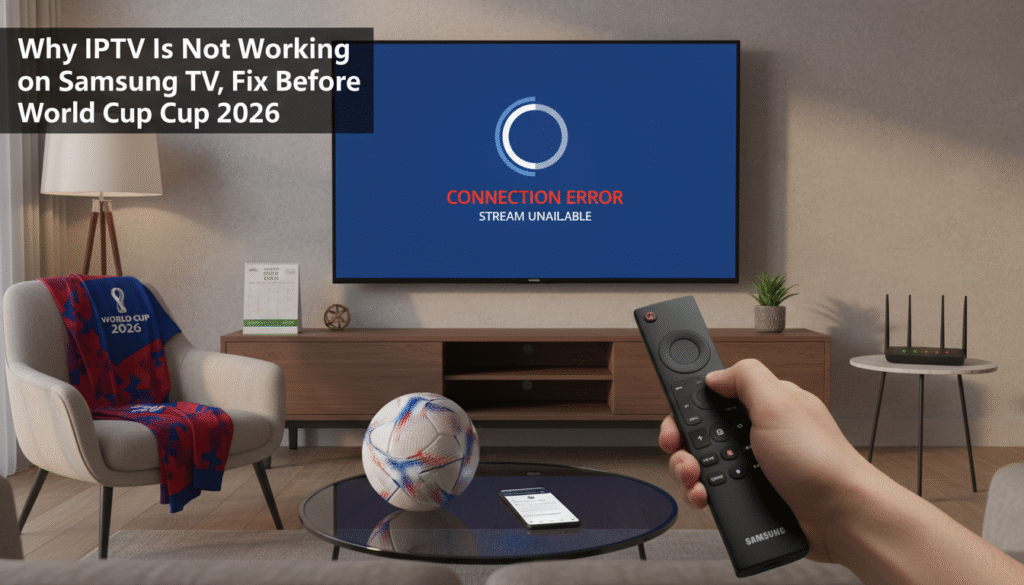
If you see any of these messages, here’s what they mean:
- “Playback error” → Internet instability or invalid stream URL.
- “URL not found” → Expired M3U link or mistyped URL.
- “App not supported” → Outdated Samsung firmware or unsupported IPTV app.
- “Buffering” → Low speed or overloaded IPTV server.
Should You Use a VPN on Samsung TV?
Although most IPTV users can watch without a VPN, some regions block certain channels. If you experience frequent buffering or regional restrictions, using a VPN like NordVPN may help. However, reliable IPTV providers like WorldCupLive.us often provide direct, unrestricted access — meaning you can stream safely even without VPN setup.
Preparing for the World Cup 2026
Don’t wait until kickoff to test your IPTV setup! The World Cup 2026 will feature 48 teams and over 100 matches make sure your Samsung TV is ready. Check your IPTV connection, update your apps, and subscribe to a premium IPTV service for uninterrupted coverage of every match.
Recommended IPTV Provider for World Cup 2026
For the best experience, go with a provider that offers:
- Global sports coverage (FIFA, UEFA, La Liga, Premier League)
- Fast, secure servers optimized for 4K
- 24/7 support and instant activation
 Global sports coverage (FIFA, UEFA, La Liga, Premier League)
WorldCupLive.us meets all these standards and is a top choice for watching the World Cup 2026 live on Samsung Smart TV.
Final Thoughts
If your IPTV is not working on Samsung TV, it’s usually an easy fix just follow the steps above. With a stable connection, updated app, and trusted provider like WorldCupLive.us, you can enjoy a seamless viewing experience during World Cup 2026. Don’t miss a single goal prepare your setup now and be ready for kickoff!
Ready to Stream Every Match?
 Ready to Stream Every Match?
Visit WorldCupLive.us today and get your IPTV subscription for smooth, HD-quality World Cup 2026 streaming on Samsung Smart TV!